
Want more customers and engagement from your Facebook business page? Sharing it correctly multiplies visibility: you can post the page link to your timeline, send it in a private message, post to a group or event, or share it from another Page you manage to reach targeted audiences quickly.

Make your business page public and then share it inside Facebook—on your profile, in groups, via messages, or from another Page you control—to get immediate visibility and drive visits. Follow simple steps in the Facebook app or on desktop to adjust privacy, craft a short invitation, and pick the best destination for your audience.
This post shows exactly where to tap, what privacy and access settings matter, and which sharing options deliver the biggest reach so you can start promoting your Facebook business page confidently and efficiently.
Key Takeaways
- Confirm your page visibility and access before sharing.
- Use in-platform options like posts, messages, groups, and other Pages to share directly.
- Combine internal sharing with targeted external promotion to boost reach.
Getting Started: Facebook Page Visibility and Access

You need to make your Facebook business page visible and get the direct link so others can find and share it. The next steps show how to publish the page, set basic visibility options, and copy the exact business page link for sharing.
Publishing Your Facebook Business Page
If your page is still in draft, publish it from the page admin view. Open your Facebook account, go to Pages, select the business page, then click Publish (or Page visibility: Public) in the Page settings or at the top of the page. Publishing makes the page visible to everyone and allows followers and non-followers to find it in search and via the link.
Confirm basic details before publishing: page name, category, profile and cover photos, and contact info (phone, website, address). Add a clear CTA button such as Contact, Book Now, or Send Message to encourage action. Verify any domain or business info if Facebook prompts verification — that improves trust and access to some features.
Finding and Copying Your Business Page Link
Open your published Facebook business page and locate the URL in your browser’s address bar; that is the business page link you’ll share. For mobile, tap the three-dot menu on the page, choose Share, then Copy Link or Share Profile > More > Copy Link depending on your app version.
Double-check the copied link by pasting it into a new browser tab to ensure it directs to your page. If you set a custom username (vanity URL) under Page settings > @username, share that shorter link (facebook.com/yourusername) to make it easier for customers to remember and type.
Direct Sharing Options Inside Facebook
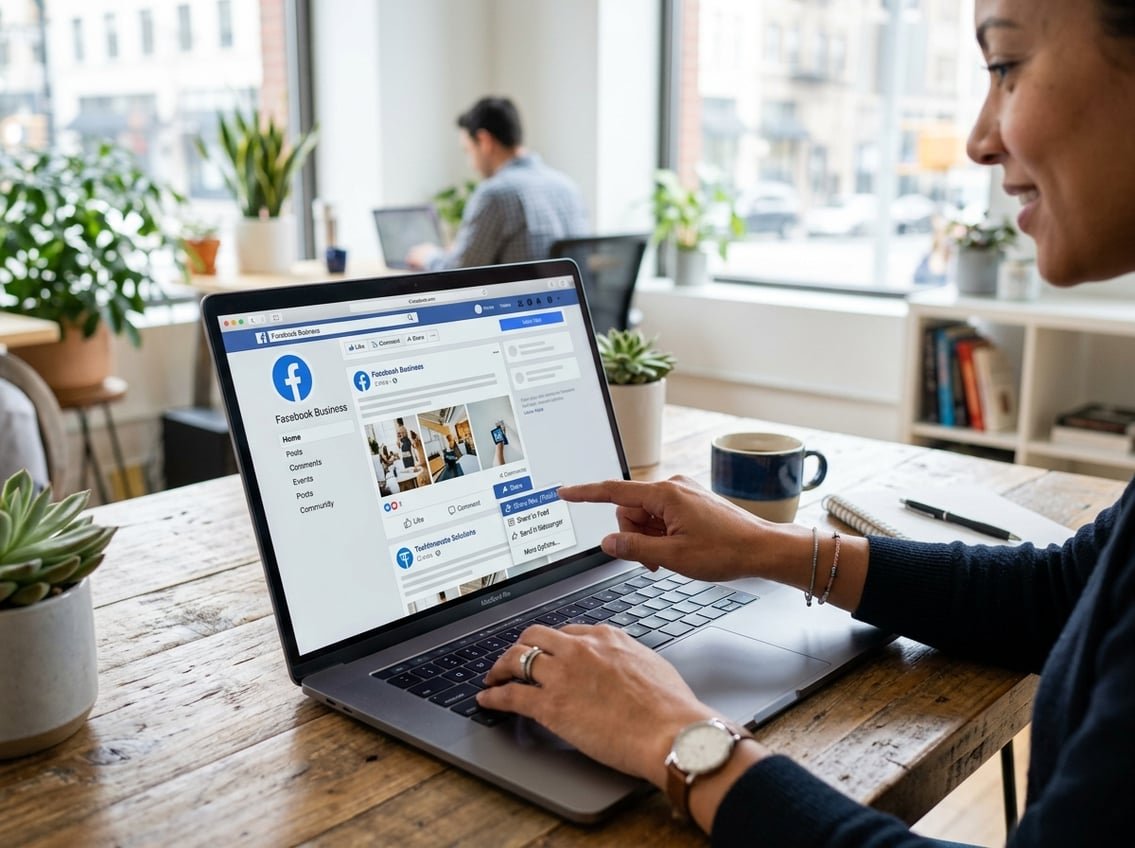
You can share your business page in multiple places on Facebook to reach different audiences. Choose the method that matches your goal—public visibility, targeted one-on-one outreach, or boosting engagement through social proof.
Share on Your Timeline
Post the business page link directly to your personal timeline to give it broad visibility among your friends and followers. Open the page, click the “Share” button, choose “Share to News Feed,” add a short caption that highlights why people should follow (mention promotions, services, or a new post), then set the audience (Public, Friends, or Custom) before posting.
Use attention-grabbing but factual copy: a one-line benefit plus a call to action works best. Include an image from the page or a recent post to increase clicks. If you manage multiple pages, clearly state which page you’re sharing to avoid confusion.
Monitor reactions and respond to comments quickly to keep the post active in feeds. If you want extra reach, pin the post to your profile or boost it with a small ad budget targeted to specific locations or interests.
Share in a Private Message
Sharing your business page via Facebook Messenger lets you target specific people with a personal note. Open the page, tap “Share,” select “Send in Messenger,” pick recipients, and include a customized message explaining why the page matters to them (relevant product, local event, or exclusive offer).
Use private messages for prospects, partners, or customers who prefer direct contact. Keep messages concise and personal—refer to past interactions or their interests to increase relevance. Avoid bulk-sending identical messages; Facebook flags repetitive outreach.
Track replies and follow up within a few days if you don’t get a response. Save message templates for common scenarios but personalize each before sending to maintain authenticity.
Tag Friends to Expand Reach
Tagging friends in your share or in a post about the business page signals the page to their networks and increases social proof. When composing your timeline post, type “@” and select friends to tag, or tag them in the post’s comment if you’ve already shared the page link.
Tag people who have a genuine connection to the content—customers, collaborators, or local contacts—to avoid appearing spammy. Explain why you tagged them (e.g., “@Jane helped design our menu”) so it feels relevant. Facebook’s algorithm favors posts with meaningful interactions, so tagged friends are likely to engage.
Respect privacy and avoid over-tagging. If someone prefers not to be tagged, remove the tag promptly and ask before tagging them in future promotions.
Reaching Broader Audiences via Groups and Communities
Use targeted communities and strategic cross-posting to put your Facebook business page in front of relevant people who already engage on the platform. Focus on permission-based sharing, valuable content, and simple CTAs to convert group members into page followers or customers.
Sharing in Facebook Groups
Post only in groups whose rules allow promotion. Scan the pinned rules and admin posts before posting; many groups require tag-lines like “Promotions Wednesday” or a moderator’s approval. Respecting rules keeps your account in good standing and avoids removal.
Craft posts that provide immediate value: a short case study, a how-to tip, or a limited-time offer linked to a landing page. Use a mix of formats—image + 1–2 sentence hook, a 1–3 sentence caption with a direct link, or a short native video under 90 seconds. Always add a clear CTA (e.g., “Follow our page for weekly templates” or “Message us to get 10% off”) and a non-spammy reason to click.
Engage with comments within 24 hours. Upvote or reply to questions, pin the post if the group allows, and tag relevant members sparingly. Track performance with a simple spreadsheet: group name, post date, impressions, link clicks, new followers.
Cross-Promotion on Other Pages or Events
Coordinate promotions with complementary pages rather than broad, unrelated pages. Identify 3–5 partners—suppliers, local businesses, or niche influencers—with overlapping audiences and similar brand tone. Propose a concrete exchange: you share their event post; they share yours on a specified date and time.
Use Facebook Events to amplify launches. Create an event from your business page, invite partner pages as co-hosts, and ask partners to share the event to their followers. Include a short event description, clear agenda, and a link to your page in the event details.
When posting on another page, mirror the partner’s best-performing format and keep copy concise. Provide partners with a one-paragraph blurb, an approved image (1200 x 628 px), and the exact share link to reduce friction. Track outcomes by noting referral traffic in Facebook Insights and any uptick in page likes or event RSVPs.
External Promotion Beyond Facebook
Use your Facebook business page link where customers already find you and in materials you send every day. Prioritize clear placement, concise calls to action, and consistent tracking so you can measure which channels drive clicks and new visitors.
Using the Business Page Link on Other Platforms
Place your business page link in visible spots across other social networks and profiles. Add the canonical Facebook page URL to your LinkedIn company section, Instagram bio (use a link service if you need multiple links), Twitter/Threads profile, and YouTube channel description so people can move from discovery to your Facebook page in one click.
When posting on other platforms, write a short, platform-tailored caption that explains the value of visiting your Facebook page — for example, “See today’s behind-the-scenes story on our Facebook page” — then include the copied link. Use UTM parameters on the link to track which platform sends the most traffic. For paid cross-promotion, match creative and messaging so the link destination meets user expectations.
Integrating With Email and Marketing Materials
Embed the Facebook page link in multiple parts of your email program: the header or footer, welcome emails, and campaign CTAs. Use a clear CTA such as “Visit our Facebook page for updates and exclusive offers” and hyperlink text to the copied URL rather than just pasting a long raw link.
Add the Facebook page link to printed materials and digital assets where appropriate: business cards, invoices, receipts, flyers, and your website’s contact page. Convert the URL into a short, readable link or QR code for print to reduce friction. Track performance by using a dedicated short link or UTM-tagged URL so you can attribute referrals and refine where you promote the Facebook page most effectively.
Maximizing Impact: Advanced Promotion and Engagement Strategies
Target paid visibility to the right people and use lead-focused content to convert visitors into subscribers or customers. Prioritize clear calls-to-action, measurable objectives, and split testing to improve results over time.
Boosting Posts to Promote Visibility
Boost posts to increase reach beyond your current followers, targeting by location, age, interests, or custom audiences you’ve uploaded. Set a single objective—such as link clicks, page engagement, or reach—and choose a precise budget and short duration (3–7 days) to test performance quickly.
Use A/B testing: run the same post with two audience sets or two creatives to see which yields lower cost per action. Monitor metrics: cost per click (CPC), engagement rate, and conversion events tracked by the Facebook pixel or Conversions API. Pause low-performing boosts after 48–72 hours and reallocate budget to winners.
Optimize creative: use a clear primary text, a single CTA button (e.g., “Sign Up” or “Learn More”), and an image or 15–30 second video sized for mobile. Add a tracking parameter to links so you can attribute traffic and tie spend to results in your analytics.
Lead Generation and Audience Growth Tactics
Use Facebook’s Lead Ads to collect email addresses or phone numbers without forcing users off-platform. Create short forms with 3–5 fields and one compelling offer—discount, ebook, or webinar—to boost completion rates. Sync leads automatically to your CRM or email platform for immediate follow-up.
Combine organic promotion with targeted ads: share a lead magnet post to your Page, then boost it to lookalike audiences based on your best customers. Run a Page “Invite” campaign: promote a high-value post, then invite engagers to like your Facebook Business Page to grow followers with proven interest.
Leverage messaging: add a Messenger CTA and set an Instant Reply that links to a lead form or booking page. Track which channels send the most qualified leads and optimize audiences, creative, and form length to improve cost per lead over time.
Frequently Asked Questions
These answers show exact steps and options for sharing your Facebook business Page across timelines, messages, profiles, and devices. Follow the short, specific instructions that match the place where you want to share the Page.
How do I share my business Page to my personal timeline?
Open your business Page while signed in with the account that manages it.
Click the “Share” button beneath the Page cover photo and choose “Share to News Feed” or “Share to Your Story,” add a comment if you want, then post.
If you don’t see a “Share” button, copy the Page link (via Settings or the address bar) and create a new post on your personal timeline, paste the link, then publish.
How can I share my business Page link with someone?
Open the Page and copy its URL from your browser address bar or tap the three-dot menu and select “Copy Link.”
Paste that URL into email, a text message, or any other app to send directly to the person.
You can also generate a short link using a URL shortener before sending if you prefer a cleaner link.
How do I share my business Page from the Facebook mobile app?
Open the Facebook app and go to your business Page.
Tap the three-dot menu (near the Page name), choose “Share,” then pick “Share to Feed,” “Share to Story,” or “Send in Messenger.”
Add a caption or tags as needed, then tap “Post” or “Share” to complete the action.
How can I send my business Page in Facebook Messenger?
Open the Page and tap the three-dot menu or the “Share” option.
Choose “Send in Messenger,” select the recipient(s), add an optional message, and tap “Send.”
Alternatively, copy the Page link and paste it directly into any Messenger conversation.
How do I share my business Page link from a desktop browser?
Navigate to the business Page and copy the URL from the browser address bar.
Paste the URL into a new post, an email, or a private message; press Enter or Send to distribute it.
You can also click the Page’s “Share” button (if visible) and choose “Share to News Feed, Story, or a Page you manage” before posting.
How can I share my Facebook Page with another account or profile?
If you want another person to promote the Page, send them the Page URL so they can share it from their account.
To give someone direct access, add them as a Page role (Admin, Editor, etc.) in Page Settings > Page Roles; they can then share the Page from the Page itself.
Do not transfer ownership unless you trust the other person; assign the appropriate role level based on the tasks they must perform.